dmesg Without the Drama: A USB Error Field Guide for Linux Users
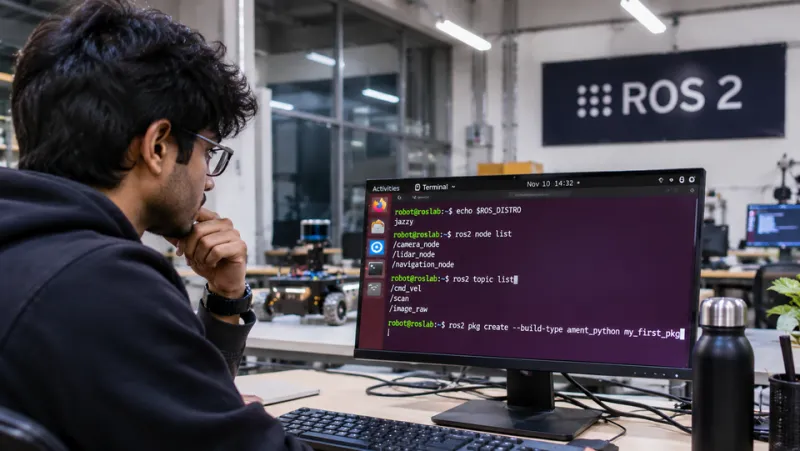
Photo: OpenAI ChatGPT (AI image generation), Public domain, via Wikimedia Commons
The kernel log is not a scorecard. It is a stream of status updates, and most of them are boring. A USB device enumerates, gets a number, and shows up. That is normal. But when something fails, dmesg often gives you the only honest account of what happened before the desktop environment starts guessing. The trick is learning which lines deserve attention and which ones are just the kernel narrating a hotplug event.
This is an opinionated guide, so here is the opinion: do not start with a reinstall. Start with the exact error phrase and the device path. Linux is unusually good at telling you whether a USB problem is electrical, protocol-level, or driver-level. You just have to stop skimming.
Read the log with a filter, not a firehose
A full [dmesg](https://en.wikipedia.org/wiki/Dmesg) is noisy. Start with the USB-related lines and timestamps:
sudo dmesg -T | grep -i usb
Then narrow to warnings and errors:
sudo dmesg -T --level=err,warn
If the failure is intermittent, follow the log live:
sudo dmesg -w
Or use journald if your distro routes kernel messages there:
journalctl -k -f
When you reproduce the problem, note the device path, such as 1-3.2, and the exact phrase. That path is more useful than the product name because it tells you which hub or root port is involved.
Field guide to the phrases you will actually see
new high-speed USB device number — Normal. The kernel found something and assigned an address. Not a problem by itself.
device descriptor read/64, error -71 — A protocol error during enumeration. It often points to a cable, a port, or a device that cannot communicate reliably. Try a different cable and a direct rear port before blaming the driver.
device not accepting address X, error -71 — The host tried to assign an address and the device did not cooperate. This is still enumeration, not your app. Swap ports, remove hubs, and test with a powered hub if the device is power-hungry.
over-current condition — The port or hub protection kicked in. Unplug the device. Do not keep retrying. Use a powered hub or a different port, and check for damaged cables.
reset SuperSpeed USB device number — The link retrained. One reset during hotplug can be harmless. Repeated resets under load suggest power or signal integrity problems.
USB disconnect, device number — Something vanished. It can be a cable, a power sag, a firmware crash, or a physical disconnect. Pair it with what you were doing when it happened.
cannot enable. Maybe the USB cable is bad? — The kernel is being blunt. Believe it enough to test another cable.
unable to enumerate USB device — The device never made it to a usable state. This is not a filesystem problem or an application problem yet. Fix enumeration first.
xhci_hcd ... WARN ... Transfer event TRB DMA ptr not part of current TD — This is controller or driver territory. It may be a kernel bug, a firmware issue, or a flaky PCIe/USB controller. Update the kernel and firmware, and search the exact phrase with your hardware model.
uas_eh_abort_handler — A USB storage enclosure using UAS hit an error and aborted. Some bridges are fine; some are not. A usb-storage.quirks entry can force the slower but steadier usb-storage path for a specific vendor and product ID.
Narrow down the failing device
If you have the device path from the log, inspect the tree:
lsusb -t
Then get details:
usb-devices
For a specific device, use lsusb -v -d vendor:product. Do not read every line. Look at speed, max power, and class. If the device is behind a hub, test it directly on the root port. If it works there, the hub or the port budget is the problem. If it fails everywhere, the device, cable, or driver is the problem.
For storage, check whether UAS is in use and whether the kernel is resetting the link. For audio, check arecord -l and aplay -l while the device is connected. For video, use v4l2-ctl --list-devices. For serial, check dmesg | grep tty. The goal is to move from a vague USB problem to a specific subsystem.
A sane escalation path
- Reproduce the failure with a known-good cable and a direct rear port.
- Capture the exact
dmesgline with a timestamp and device path. - Test the device on another machine or a live USB of a different kernel. If it fails there too, you have a hardware or firmware suspect.
- Check
uname -rand search the error with your kernel version and hardware model. Do not search only the product name. - Update firmware where the vendor provides Linux support, such as
fwupdmgrfor supported devices. - Try a newer kernel from your distro's backports or a live image before you reinstall anything.
- If it is a kernel bug, report it with the full log,
lsusb -v, and the steps that trigger it.
The kernel log is trying to tell you something. Most of the time it is saying the cable is bad, the port is overloaded, or the device never enumerated. Those are fixable. Reinstalling the OS is not a diagnostic step; it is a way to lose the evidence.