Your DAC Is Probably Fine: A Diagnostic Ladder for Crackly USB Audio on Linux
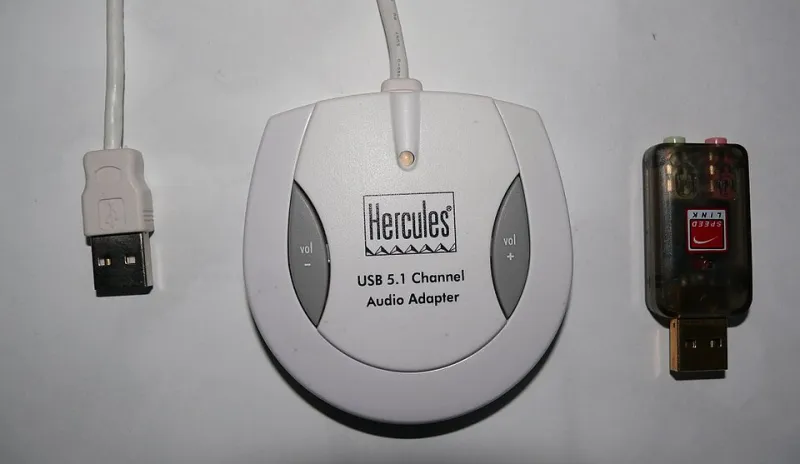
Photo: Itu, CC BY-SA 3.0, via Wikimedia Commons
Every few weeks someone posts a wall of text about their new USB interface clicking on Linux and gets told to switch to JACK, or roll back PipeWire, or "try PulseAudio instead." All three suggestions are usually wrong, and they all skip the step that matters: figuring out which of three suspects is actually guilty.
USB audio involves a device, a port (with power and a host controller behind it), and a software stack that is doing sample-rate conversion and latency management. Crackle can come from any of them, and the symptoms overlap enough that guessing is a waste of a weekend. So work the ladder in order.
Rung 1: read what the kernel is complaining about
Unplug, run dmesg -w in one terminal, and plug back in. Watch the whole enumeration, not just the last line.
dmesg -w
lsusb -t
cat /proc/asound/cards
aplay -l
arecord -l
Things worth writing down:
- Which bus and port the interface landed on, and at what speed.
lsusb -tshows the tree; a DAC behind a dock's internal hub is a different animal than one in a root port. snd-usb-audiobinding without complaint. If you seecannot submit urborretire_capture_urb: N callbacks suppressed, the transfer layer is already struggling.- Any
xhci_hcderrors. Lines likeTransfer event TRB DMA ptr not part of current TDare the host controller telling you something, not the audio server.
No errors here does not clear the device, but errors here absolutely condemn something below the audio stack.
Rung 2: bypass the audio server entirely
This is the single most useful test and almost nobody runs it. Address the hardware directly:
speaker-test -D hw:2,0 -c 2 -t sine -l 1
aplay -D hw:2,0 --dump-hw-params somefile.wav
hw: skips PipeWire, WirePlumber, and any sample-rate conversion. If the sine tone is clean on hw: but crunchy through the normal default device, your hardware, cable, and port are fine and the problem lives in the stack. If it crackles on hw: too, stop reading software configuration guides — you have a power, port, or firmware problem.
--dump-hw-params also prints the rates and formats the device actually advertises, which saves you from arguing with a spec sheet later.
Rung 3: the sample-rate mismatch
Most interfaces run a fixed internal clock and expect the host to meet it. PipeWire's default is 48000 Hz; a device locked to 44100 by a physical switch, a hardware control panel, or a stubborn firmware will force resampling that some interfaces handle badly — especially cheap ones and anything doing it in a hub chip.
Check the graph live:
pw-top
Look for the node's rate and the ERR column climbing. Then either match the device or match the graph:
# ~/.config/pipewire/pipewire.conf.d/10-clock.conf
context.properties = {
    default.clock.rate = 48000
    default.clock.allowed-rates = [ 44100 48000 96000 ]
}
Listing multiple allowed rates lets the graph follow the device instead of resampling everything to one number. Restart the session and re-check pw-top.
Rung 4: autosuspend, the classic
USB power management will park an idle interface and then take a moment to wake it, which you hear as a clipped first second of every track or a click after ten seconds of silence.
cat /sys/bus/usb/devices/1-2/power/control
cat /sys/bus/usb/devices/1-2/power/runtime_status
If control says auto, test by forcing it on:
echo on | sudo tee /sys/bus/usb/devices/1-2/power/control
Clean now? Then make it permanent with a udev rule keyed to the vendor and product IDs, or disable USB autosuspend globally with usbcore.autosuspend=-1 on the kernel command line. If you run TLP, check its USB_AUTOSUSPEND and USB_DENYLIST settings — laptops ship with aggressive defaults for battery reasons.
Also check whether the interface is bus-powered and hanging off an unpowered hub. A dock that claims 900 mA per port on paper is not always delivering it under load, and bus-powered interfaces are the first to complain.
Rung 5: ports, docks, and host controller quirks
Move the device to a plain rear port directly on the motherboard — ideally a USB 2.0 one — and retest. This isolates the dock, the hub chip, and any USB 3 xHCI behavior in one move.
If the crackle vanishes on the rear port, you have your answer and it is not software. Docks with internal hubs, USB-C adapters with marginal power delivery, and long or thin cables all produce exactly this symptom. USB 3 ports also radiate noise near 2.4 GHz, which is a well-known cause of Wi-Fi dropouts and occasionally shows up as audio glitching on poorly shielded interfaces.
For genuinely quirky hardware, the snd_usb_audio module accepts quirk flags:
cat /sys/module/snd_usb_audio/parameters/quirk_flags
Options are documented in the kernel source under sound/usb/quirks-table.h. It is a blunt instrument, but for a handful of interfaces with broken implicit feedback it is the only fix short of a firmware update.
Rung 6: latency, xruns, and realtime scheduling
If pw-top shows a rising ERR count with no kernel errors, the graph simply is not keeping up. Raise the quantum before you touch anything else:
context.properties = {
    default.clock.quantum = 1024
    default.clock.min-quantum = 256
}
Bigger quantum, fewer dropouts, more latency. If you are monitoring through the interface while recording, you will feel the trade-off immediately. Also confirm the audio group has realtime privileges — rtkit or a limits.conf entry for @audio with rtprio and memlock set — because a starved realtime thread looks like crackle, not like a scheduling error.
The verdict, in order
Crackle on hw: but not on another port: port or power. Crackle everywhere including another machine: device firmware or cable. Clean on hw: but dirty through the default device: sample rate, quantum, or autosuspend. And if it is a low hum rather than a crackle, stop — that is a ground loop, and a $30 USB isolator fixes it faster than any configuration file ever will.