Dock It Right: The Linux User's Complete Playbook for USB-C Docking Stations
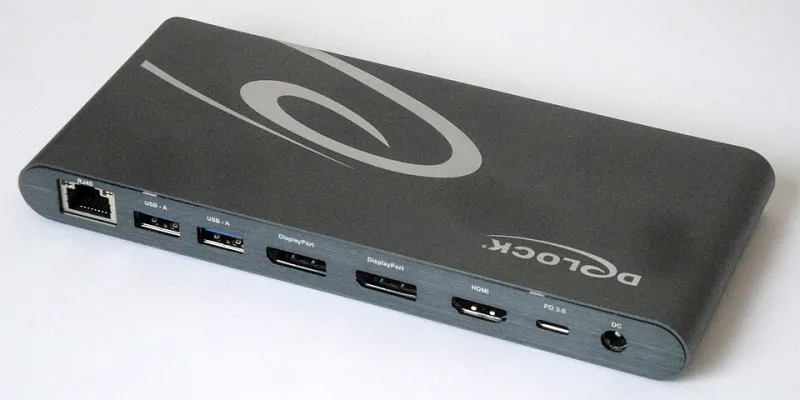
Photo: Reise Reise, CC BY-SA 4.0, via Wikimedia Commons
There's something deeply satisfying about plugging a single USB-C cable into your laptop and watching your whole desk spring to life — monitors, keyboard, mouse, Ethernet, all of it. That's the promise of a USB-C docking station. The reality, at least on Linux, is a little more complicated. Power delivery negotiation can fail silently. DisplayLink adapters require out-of-tree drivers that break on every kernel update. And some docks that work flawlessly on Windows turn into expensive USB hubs the moment you boot into Fedora.
We've spent the last several weeks running seven popular docking stations through their paces on real Linux hardware — a ThinkPad X1 Carbon Gen 11 (Ubuntu 23.10), a Framework 13 AMD (Fedora 39), and a System76 Lemur Pro (Arch Linux, rolling). The results were eye-opening, and honestly, a little frustrating. But we came away with a solid shortlist and a clear picture of what to look for.
Understanding the USB-C Dock Ecosystem (It's More Complicated Than It Looks)
Not all USB-C docks are created equal, and the differences matter enormously on Linux. The two main display output technologies you'll encounter are Thunderbolt/USB4 native and DisplayLink. Native Thunderbolt docks pass display signals directly through the host controller, which means the Linux kernel handles everything through standard DRM drivers — no proprietary software required. DisplayLink docks, on the other hand, use a USB-to-display chip from Synaptics that requires a closed-source kernel module.
The DisplayLink driver situation has improved in recent years, but it's still a headache. You'll need to grab the driver from the DisplayLink website, rebuild it after every kernel update (unless you set up DKMS properly), and accept that suspend/resume behavior can be flaky. On a rolling release like Arch, this is a recurring chore.
For power delivery, look for docks that support PD 3.0 with at least 65W passthrough for thin-and-light laptops, and 96W or higher if you're running a more power-hungry machine. Some docks advertise 100W but throttle delivery under load — we measured actual wattage using a USB-C power meter during stress testing, and the numbers don't always match the spec sheet.
The Seven Docks We Tested
Caldigit TS4 — This is the gold standard, and it shows. On all three test machines, every port worked out of the box. The TS4 uses Thunderbolt 4 natively, so there's zero driver drama. Dual 4K60 worked perfectly on the ThinkPad. Power delivery held steady at 98W under load. The only knock is the price — it's sitting around $350 at most US retailers. Worth every penny if your laptop has a Thunderbolt port.
Anker 575 USB-C Docking Station — A solid mid-range option at around $150. DisplayLink-based, so you'll need to install the driver, but Anker's documentation is clear and the DKMS setup works reliably. On Fedora 39 with Secure Boot enabled, we had to manually enroll the MOK key — not a dealbreaker, but worth knowing. Single 4K60 or dual 1080p60 works well.
Plugable UD-6950PDZ — Another DisplayLink unit, but Plugable deserves credit for their Linux support page, which is genuinely useful and kept up to date. Dual 4K60 tested fine on Ubuntu. On Arch, we hit a kernel module conflict after a kernel bump that took about 20 minutes to resolve. If you're comfortable in a terminal, it's manageable.
Kensington SD5600T — Thunderbolt 3 dock with a clean Linux track record. Works natively, no proprietary drivers. Power delivery topped out at 85W in our tests — adequate for most laptops but not ideal for power-hungry AMD machines. Ethernet via the built-in Realtek chip worked immediately on all three distros.
Dell WD19TBS — A popular choice in enterprise environments, and it shows in its Linux compatibility. Thunderbolt-native, solid build quality, and Dell has been quietly good about firmware updates. Dual 4K works great. The USB-A ports on this dock occasionally had enumeration delays on the Framework laptop, which we traced to a USB hub controller quirk rather than a driver issue.
WAVLINK Thunderbolt 4 Dock — Budget Thunderbolt option around $120. Functional, but we saw occasional display flicker on the second monitor at 4K. Fine for 1080p or single 4K setups. Power delivery was inconsistent — it would occasionally drop from 90W to 60W passthrough without explanation.
Belkin Connect Pro Thunderbolt 4 Dock — Reliable and well-built, with good Linux compatibility right out of the box. Sits in the $250 range. Nothing flashy, but it just works — which, honestly, is exactly what you want.
Multi-Monitor Setup: What Actually Works on Linux
Getting two external monitors working reliably on Linux requires a bit of planning. A few things to keep in mind:
- Wayland vs. X11 matters. Some DisplayLink setups still have rough edges on Wayland, particularly with cursor rendering and window dragging. If you hit issues, switching to X11 is a quick workaround.
- Check your laptop's Thunderbolt lane count. Thunderbolt 4 guarantees two 4K60 displays over a single cable. USB4 Gen 2 doesn't always. The Framework 13 AMD uses USB4 but not full Thunderbolt, which limits some dock features.
- Use
xrandror GNOME Display Settings to arrange monitors after connecting. On first connection, Linux may stack displays rather than extend them.
Kernel and Driver Quick Fixes
If your dock isn't behaving, try these before returning it:
- Check
dmesgimmediately after plugging in. Look forxhci_hcderrors or power negotiation failures. This tells you whether the issue is hardware or software. - Disable USB autosuspend for the dock's USB hub. Add
usbcore.autosuspend=-1to your kernel parameters temporarily to rule out power management as the culprit. - For DisplayLink, verify DKMS is set up correctly with
dkms status. If the module isn't listed, the driver won't survive a kernel update. - Thunderbolt authorization. On some systems, you need to authorize a Thunderbolt device before it fully enumerates. Check
bolt listand usebolt enrollif your dock shows up as unauthorized.
Our Pick for Most Linux Users
If your laptop has a full Thunderbolt 4 port and budget isn't a constraint, the Caldigit TS4 is the answer — full stop. If you need something more affordable and you're comfortable with a little driver setup, the Anker 575 punches well above its price point. Avoid DisplayLink docks if you're on a rolling release and don't want to babysit kernel module updates.
The USB-C docking experience on Linux has genuinely improved over the last two years. It's not plug-and-play in the Windows sense, but with the right dock and a few minutes of setup, it gets pretty close.